Creative Asset Guidelines for Agencies
Who this guide is for
This guide is for creative teams handing off artwork for Lucit to turn into dynamic ads.
What to Send for Each Booked Layout
Design one finished ad first. Then show us what changes and send the artwork we’ll need to rebuild it.
For each booked layout, send a separate finished reference (JPEG or PNG) at the booked pixel dimensions, even if you’re sending a PSD. Show real example text and imagery with all changing elements visible. Then choose the production artwork that fits the layout:
- Layered PSD: Preferred when changing elements overlap, need masks, or sit between other layers.
- Clean JPEG: Use for an opaque layout where changing elements sit on top. Remove the changing elements but leave the background intact.
- Transparent PNG: Use when a changing photo sits behind a branded frame. Leave the photo window transparent and remove any changing text.
Include any source assets the layout needs and a short handoff note explaining what changes, what stays fixed, and how to handle unusual or missing values.
Location-Based Creative: Start with One Real Place
Pick a city, store or event. Write the actual headline, choose the image and use your brand’s fonts, colors and layout. Skip the placeholder boxes. A finished ad shows us how the message should feel.
The Fizz Parade example gives “Miami” its own line. The placement and scale show how much room to give the city name.
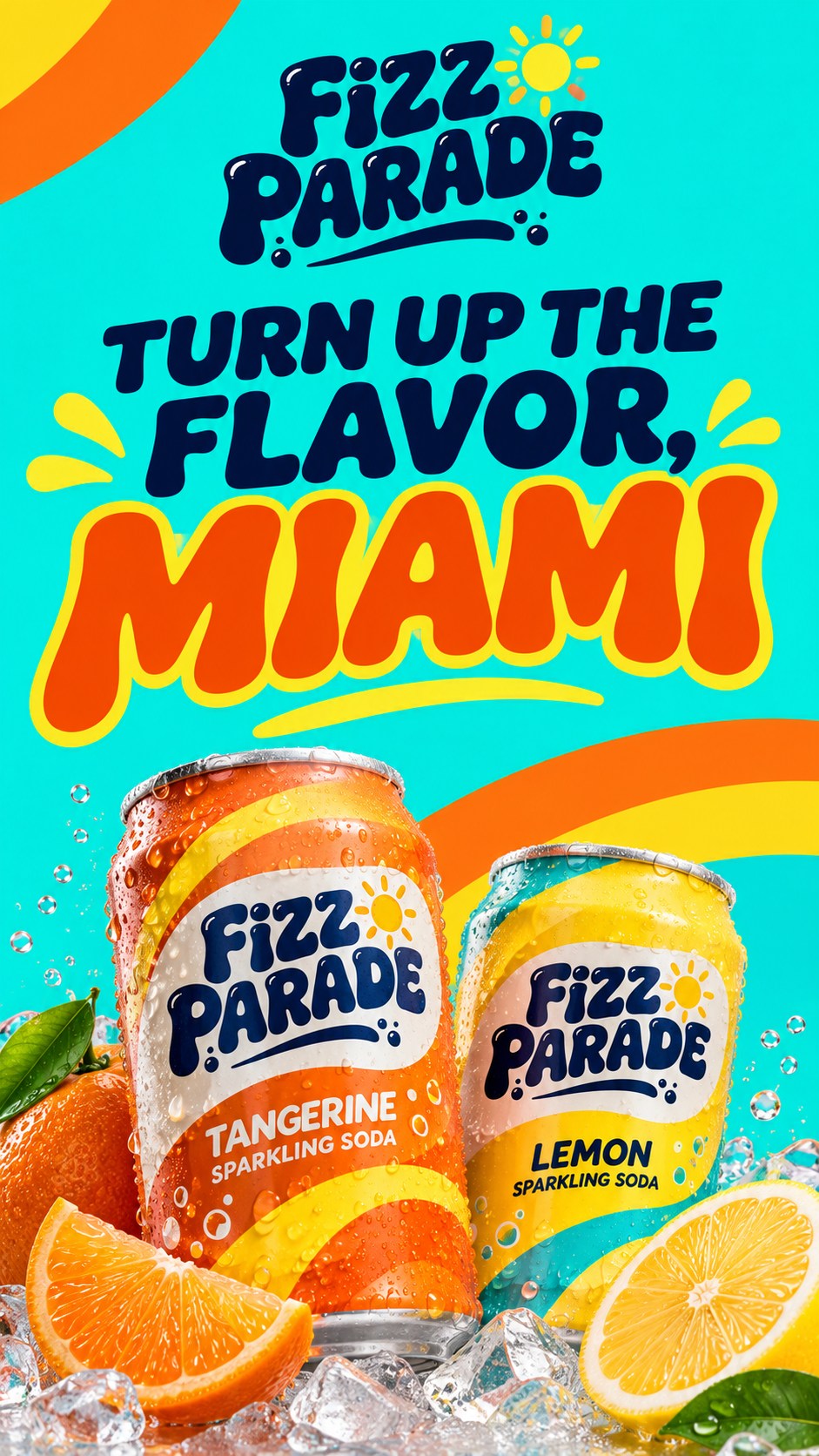
To match the city name, send the font and note any special styling, such as letter spacing or an outline.
Try Two or Three Versions
For a location campaign, mock up two or three markets. Pair a short name like Miami with a longer one like Fort Lauderdale. Show us where you’d break the line or shorten the copy.
Design Each Main Size in the Media Plan
Use the booked width × height in pixels. Give a wide bulletin and a vertical screen their own compositions when both are on the buy. If sizes are still being confirmed, use Lucit’s Screen Format Reference for starting dimensions, such as 1920 × 1080 for widescreen or 1080 × 1920 for vertical.
Artwork Files to Send
Layered Photoshop File
Keep changing text editable and label the layers that change. Group them where practical, but preserve the layer order and masks that create the effect. Include any linked images or Smart Objects the PSD needs to open correctly. Export a separate finished JPEG or PNG reference at the same dimensions.
JPEG Handoff
If you’re using a clean JPEG instead of a PSD, send it alongside the finished reference at identical pixel dimensions. To export the clean shell, hide the changing elements and keep the background intact underneath.
Example: Dynamic Field Overlays
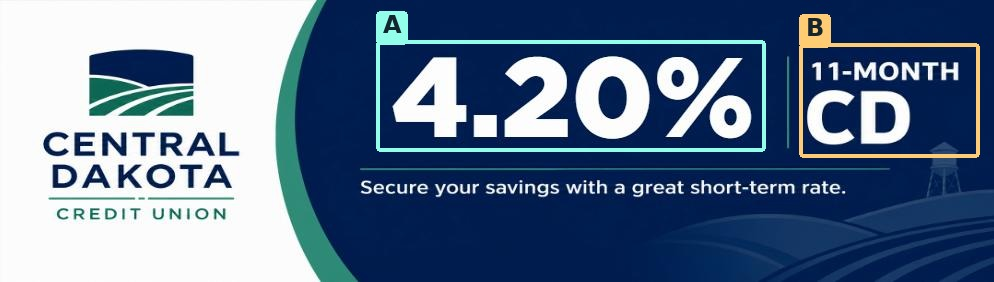
- A — Dynamic: The rate, including the percent sign.
- B — Fixed: The 11-month CD label.

Clean shell: The background, logo, term, rule and tagline stay in place.
Send unmarked artwork
The outlines above explain the example. Put your own notes in the handoff email or on a separate reference copy.
Use a PSD when changing elements overlap or need masks. Use paired JPEGs when the background is opaque and the changing fields sit on top.
Transparent PNG Shells
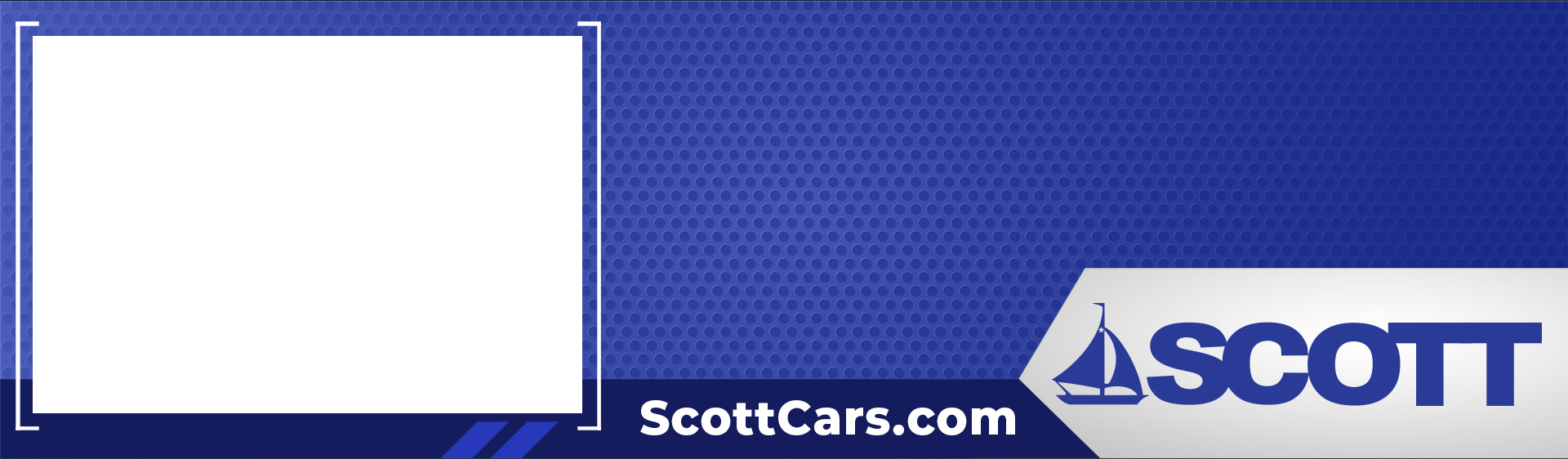
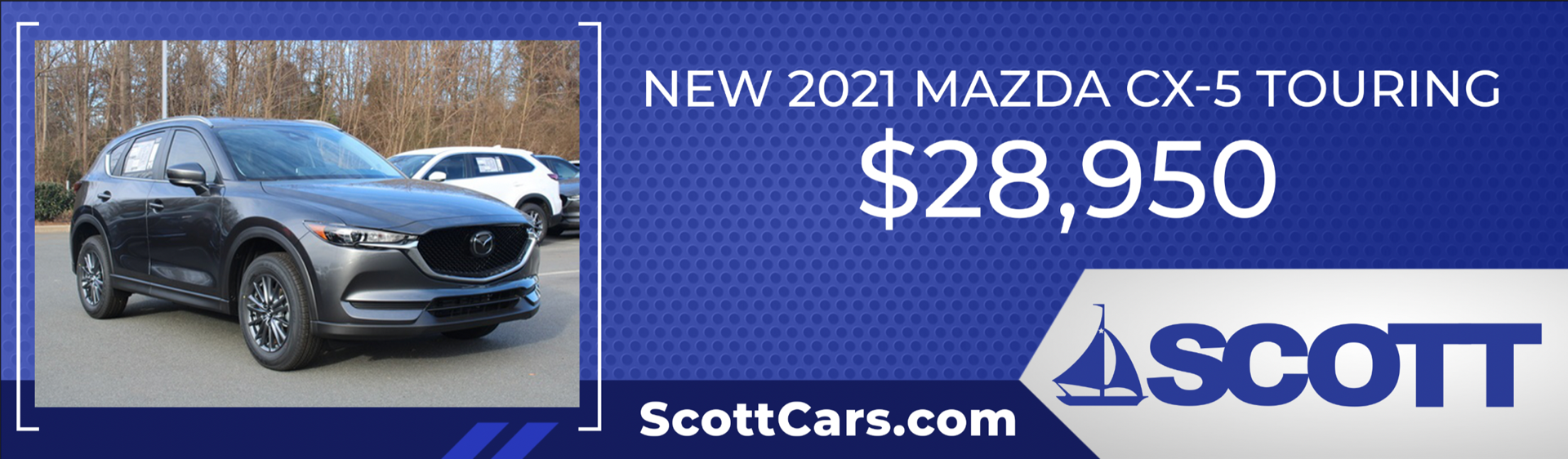
When a new photo goes behind a branded frame, send a PNG shell with the photo window transparent and the changing text removed. Include a finished JPEG or PNG at the same pixel dimensions to show the crop, alignment and type treatment. Only the shell needs transparency.
Example: Scott Inventory Photo and Price
The vehicle photo sits behind the left window. The model and price change on the right. The brackets, website and Scott logo stay fixed.
Example: Bondy’s Nissan Photo and Caption
The portrait fills the angled window on the right. The caption changes below the dealership branding. Use a real portrait to show the intended crop.


Fonts and Text Colors
Include the TTF or OTF file for each weight used in dynamic text. Give the HEX or RGB color for each field so Lucit can match your mockup. If font sharing is restricted, tell Lucit how to obtain the licensed font.
Multiple Dynamic Elements and Layers
A Countdown Behind the Athlete
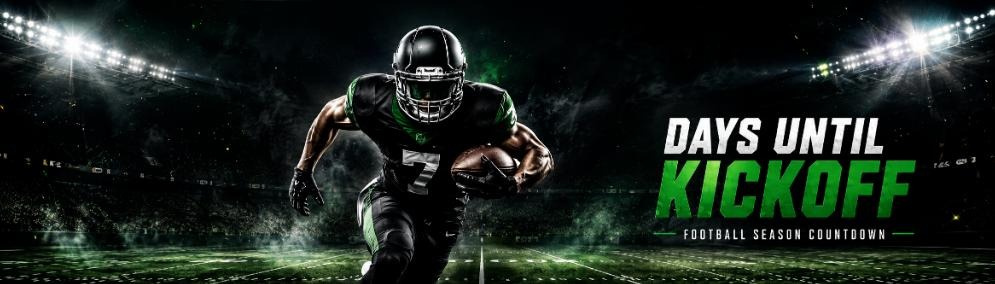
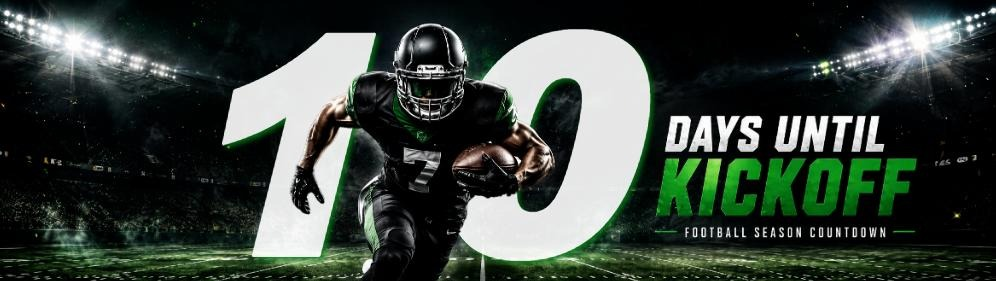
The shell above shows what stays fixed, but it isn’t enough to recreate the overlap. Send the stadium background without the athlete and the athlete on a separate transparent layer so Lucit can place the changing number between them. Keep both in the layered PSD, or send the clean background and a separate transparent PNG cutout. In the finished reference, show the widest count you expect to display. For template setup, see Create a Countdown Ad.
A Live Scoreboard
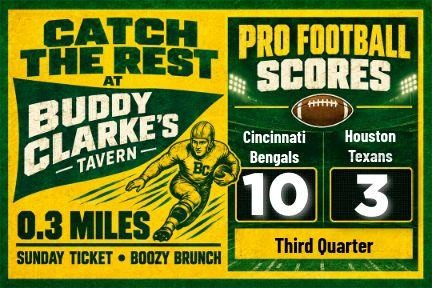
Identify which name belongs above each score and what appears below both. If the layout changes before kickoff or after the game, show an example of each state you want to run. See Build Pre-Game, In-Game, and Post-Game Sports Feed Creatives for help setting up those states.
Team and league branding
Confirm the advertiser has permission to use the proposed team names, league names and logos. If permissions are uncertain, mock up city names or familiar three- or four-letter broadcast codes and have the client approve the wording.
When the Image Changes, Too
For inventory or menu creative, send representative source photos with their original crops. Mark what must stay in frame and tell us which photo, name and price belong together. A sample from the actual feed helps us reproduce the look with the next item.
Creative Handoff Checklist
Send the artwork and a short note to your Lucit contact.
- Main sizes: List the booked dimensions (width × height in pixels) and include the artwork for each main layout.
- Finished references: Send a separate JPEG or PNG at the booked dimensions for each layout. For localized creative, include two or three markets with realistic copy, including a long name if it affects the layout.
- Production artwork: For each layout, send the appropriate editable PSD, clean JPEG shell, or transparent PNG shell, plus any separate layers needed for overlaps.
- Fonts and image assets: Include the TTF or OTF for each weight (or licensing details), text colors (HEX or RGB), and linked photos, logos, masks and cutouts.
- Handoff note: Use the template below to share example values, layout rules, what should happen when a value is missing, and any pending approvals.
Copy-and-Paste Handoff Note
- Booked sizes (width × height in pixels): [List sizes and match each to its artwork.]
- What stays fixed: [Logo, headline, frame, or other elements.]
- For each changing text field: [Field name; typical value; longest or widest realistic value; whether it may wrap or be shortened; what to show if the value is missing.]
- For each changing photo: [Example photo and intended crop; what must stay in frame; what to show if the photo is missing.]
- What changes together: [For example, city and store address, or product photo, name and price. Include a matched sample row if available.]
- Pending approvals: [Copy, imagery, or brand marks still awaiting approval, or “none.”]
For example: “The city and store address change together. Use Miami as the typical city and Fort Lauderdale as the long example. On the portrait layout, a long city name can wrap to two lines. If the address is missing, use the city-only version.”
What Lucit Does Next
We build the template from your files and check how it looks with different values and sizes. If a longer name crowds the logo or a crop cuts off the product, we’ll come back to you with a specific design adjustment.
Related Resources
- All Platform Guides — Browse Lucit guides and references.
- Creative Template Specs — View more artwork examples.
- Screen Format Reference — Find starting dimensions for digital screens.
- Template Designer General Navigation Guide — Learn how to work with dynamic elements and templates in Lucit.
- LucitXR Preview and Proofing — Preview artwork on a real-world screen before it runs.